Introduction
Imagine typing a single sentence and watching a stunning, professional-quality painting appear on your screen in seconds. No paintbrush. No art degree. No expensive software. Just words and artificial intelligence doing the rest.
That is exactly what AI art generation allows you to do in 2026. And the best part? You can do all of it completely free.
Thank you for reading this post, don't forget to subscribe!AI art has exploded in popularity across the United States. Millions of Americans bloggers, teachers, small business owners, students, hobbyists, and professional designers are now using free AI art tools every single day to create images that would have cost hundreds of dollars to commission from a human artist just a few years ago.
But if you have never tried it before, the whole thing can feel confusing and overwhelming. Which tool do you use? How do you describe what you want? Why does the AI sometimes create something totally different from what you asked for? And how do you go from a blank screen to a stunning finished image?
This complete beginner’s guide answers every one of those questions. Step by step. In plain, simple English. By the time you finish reading this article, you will know exactly how to generate beautiful AI art for free starting today.
Section 1 What Exactly Is AI Art?
The Simple Definition
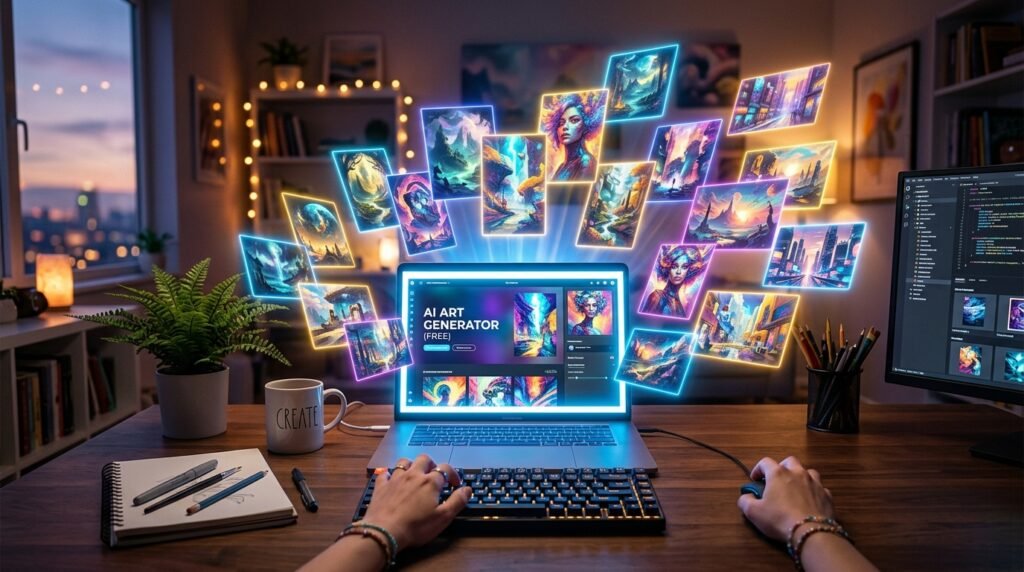
AI art is any image, illustration, painting, or graphic that was created by an artificial intelligence program rather than drawn by a human hand. You provide the description the AI creates the image.
These are not stock photos pulled from a database. Every AI-generated image is completely original created from scratch, never seen before, generated specifically in response to your prompt. No two outputs are exactly alike.
How Does the AI Actually Create Images?
Here is the simplified version of what happens behind the scenes:
AI image generators were trained on hundreds of millions of images from the internet photographs, paintings, illustrations, logos, and every other kind of visual art along with text descriptions of those images. Over time, through a process called machine learning, the AI learned the deep relationships between words and visual concepts.
It learned what “sunset” looks like. It learned what “impressionist painting” means visually. It learned how “fluffy golden retriever” differs from “fierce gray wolf.” It absorbed the visual language of centuries of human artistic creation.
When you type a prompt, the AI uses all of that learned knowledge to generate a brand new image that matches your description. Most modern tools use a process called diffusion starting with random visual noise and gradually refining it, step by step, until a clear and detailed image emerges that matches what you asked for.
What Kinds of Images Can AI Create?
The range is genuinely astonishing. AI art tools in 2026 can create.
If you can describe it in words, there is a very good chance an AI can create it.
Section 2 The Best Free AI Art Tools for Beginners in 2026
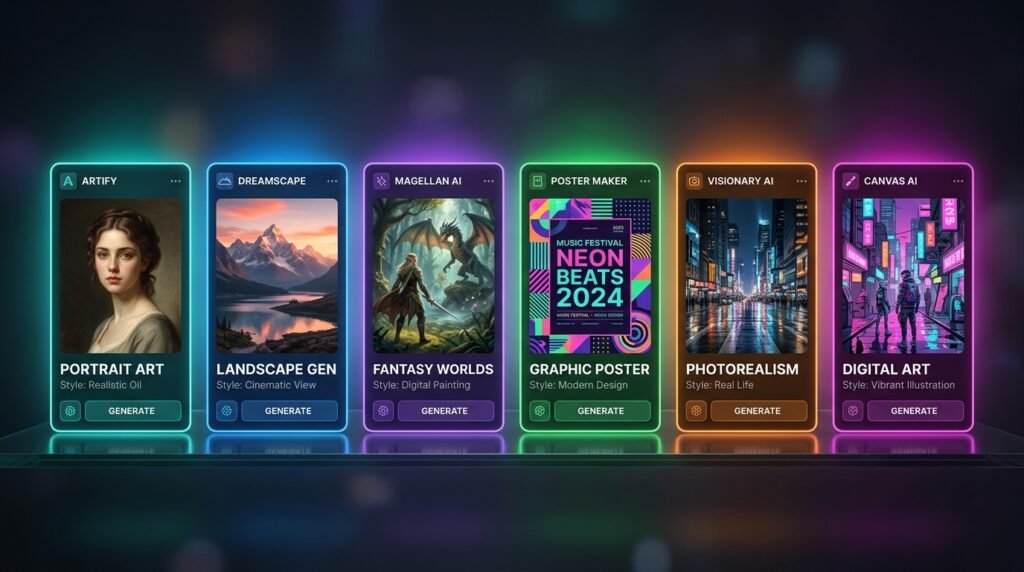
You do not need to pay anything to start creating AI art. Here are the six best free tools available to beginners in the USA right now:
① Adobe Firefly
Best for: Professional quality + commercial use
Adobe Firefly is available free at firefly.adobe.com with a free Adobe account. It produces stunning, professional-quality images and crucially every image it generates is legally safe to use commercially. This is because Adobe trained Firefly on licensed Adobe Stock images rather than scraping random internet content.
The free plan gives you 25 monthly credits. The interface is clean, simple, and runs entirely in your web browser with no downloads needed.
② Microsoft Designer / Bing Image Creator
Best for: Beginners who want instant, zero-effort results
Powered by DALL·E 3 one of the world’s most advanced image generation models Microsoft Designer is available free at designer.microsoft.com with any Microsoft account. Bing Image Creator at bing.com/create gives you the same DALL·E 3 quality with daily free “boost” credits.
Both tools require zero technical knowledge. Type your description, click generate, done.
③ Leonardo AI
Best for: Artists and creative users who want more control
Leonardo AI at leonardo.ai gives you 150 free daily tokens roughly 30 to 50 images per day. It offers a wide selection of specialized artistic models, style presets, and advanced controls. The image quality is among the best of any free tool, with results that rival paid platforms like Midjourney.
④ Google ImageFX
Best for: Photorealistic images
Available free at labs.google/fx/tools/image-fx with a Google account. Powered by Google’s Imagen 3 model, ImageFX produces some of the most photorealistic AI images available on any free platform. The interface is clean and minimal just type and generate.
⑤ Ideogram AI
Best for: Images that include readable text
Ideogram at ideogram.ai gives you 10 free daily generations. It is the best free tool for creating posters, banners, and social media graphics that include legible, accurately spelled text something most other AI tools struggle with significantly.
⑥ Canva AI (Dream Lab)
Best for: Social media graphics and design projects
Canva’s built-in AI image generator is integrated directly into the world’s most popular free design platform. Generate an image and immediately use it in a social media post, presentation, or flyer all inside one app. Available free at canva.com.
Section 3 Side-by-Side Comparison of Free AI Art Tools
Here is a clear breakdown of how all six tools compare across the features that matter most to beginners:
FREE GENERATION ALLOWANCE
| Tool | Free Credits | Resets |
|---|---|---|
| Leonardo AI | ~150 tokens/day (~30–50 images) | Daily |
| Microsoft Designer | Generous daily limit | Daily |
| Bing Image Creator | Boost credits + unlimited (slower) | Daily |
| Google ImageFX | No stated limit | — |
| Ideogram AI | 10 images/day | Daily |
| Adobe Firefly | 25 credits/month | Monthly |
| Canva AI | Limited monthly | Monthly |
IMAGE QUALITY & STYLE
| Tool | Photorealism | Artistic Style | Text in Images |
|---|---|---|---|
| Adobe Firefly | ⭐⭐⭐⭐⭐ | ⭐⭐⭐⭐ | ⭐⭐⭐⭐ |
| Microsoft Designer | ⭐⭐⭐⭐⭐ | ⭐⭐⭐⭐ | ⭐⭐⭐⭐ |
| Leonardo AI | ⭐⭐⭐⭐ | ⭐⭐⭐⭐⭐ | ⭐⭐⭐ |
| Google ImageFX | ⭐⭐⭐⭐⭐ | ⭐⭐⭐⭐ | ⭐⭐⭐⭐ |
| Ideogram AI | ⭐⭐⭐⭐ | ⭐⭐⭐⭐ | ⭐⭐⭐⭐⭐ |
| Canva AI | ⭐⭐⭐ | ⭐⭐⭐ | ⭐⭐⭐⭐ |
EASE OF USE FOR BEGINNERS
| Tool | Difficulty | Setup Required | Mobile App |
|---|---|---|---|
| Bing Image Creator | ★ Very Easy | Microsoft account only | ✔ Yes |
| Microsoft Designer | ★ Very Easy | Microsoft account only | ✔ Yes |
| Google ImageFX | ★ Very Easy | Google account only | ✘ Web only |
| Canva AI | ★ Very Easy | Free Canva account | ✔ Yes |
| Adobe Firefly | ★★ Easy | Free Adobe account | ✔ Yes |
| Ideogram AI | ★★ Easy | Free account | ✔ Yes |
| Leonardo AI | ★★★ Moderate | Free account + learning curve | ✔ Yes |
COMMERCIAL USE ON FREE PLAN
| Tool | Commercial Use Allowed? | Notes |
|---|---|---|
| Adobe Firefly | ✔ Yes — fully safe | Trained on licensed content |
| Microsoft Designer | ✔ Yes | Check Microsoft terms |
| Bing Image Creator | ✔ Yes | Non-commercial preferred |
| Google ImageFX | ⚠ Limited | Review Google terms |
| Leonardo AI | ⚠ Limited | Free plan has restrictions |
| Ideogram AI | ⚠ Limited | Paid plan for commercial |
| Canva AI | ⚠ Limited | Canva Pro unlocks full rights |
Section 4 How to Write AI Art Prompts That Actually Work
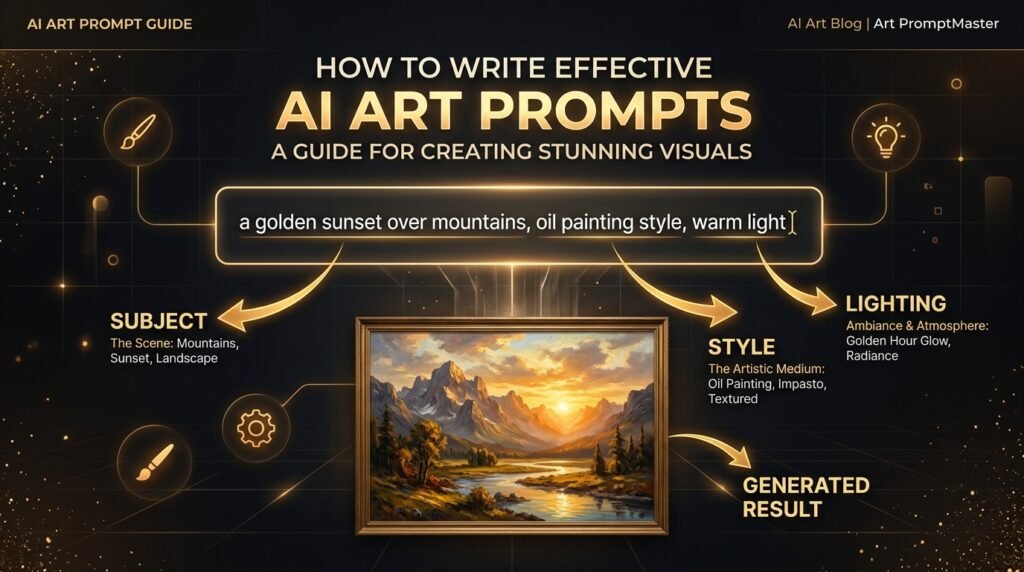
This is the most important skill in AI art generation. The tool you choose matters but how you describe your image matters even more. A weak prompt produces a disappointing, generic image. A strong, detailed prompt produces something genuinely beautiful.
Here is everything you need to know to write prompts that work.
The Golden Formula for Beginners
Think of every great AI art prompt as having six ingredients:
SUBJECT + STYLE + SETTING + LIGHTING + MOOD + TECHNICAL DETAILSYou do not need all six every time but using more ingredients consistently produces better results.
Breaking Down Each Ingredient
① SUBJECT What is the main focus of the image?
Be as specific as possible. Do not just say “a woman.” Say “a middle-aged woman with silver hair, wearing a blue linen jacket, looking thoughtfully out of a rain-covered window.”
② STYLE What artistic style should it be in?
This is where you define the visual language of your image. Here are some style keywords that work well:
Photorealistic · Cinematic · Oil painting · Watercolor · Digital illustration · Anime · Comic book · Impressionist · Minimalist · Surrealist · Art deco · Vintage 1970s · Dark fantasy · Soft pastel
③ SETTING Where is the scene taking place?
A cozy coffee shop in Paris · A futuristic neon-lit city at night · A sunflower field in the American Midwest · An ancient Japanese temple · A cozy mountain cabin in winter
④ LIGHTING How is the scene lit?
Lighting dramatically changes the feel of an image. Try these descriptors:
Golden hour sunlight · Soft studio lighting · Dramatic chiaroscuro shadows · Neon glow · Soft candlelight · Bright overcast daylight · Volumetric fog · Blue moonlight
⑤ MOOD What feeling should the image convey?
Peaceful and serene · Mysterious and dark · Joyful and vibrant · Nostalgic and warm · Epic and dramatic · Playful and whimsical · Melancholic and quiet
⑥ TECHNICAL DETAILS Quality boosters that improve output
8K resolution · Highly detailed · Sharp focus · Professional photography · Award-winning photo · Rendered in Unreal Engine · Studio quality
Weak Prompt vs. Strong Prompt — Real Examples
Example 1 Portrait
Weak: “A woman in nature”
Strong: “A young Native American woman standing in a golden autumn forest, wearing traditional beaded jewelry, soft dappled sunlight filtering through the trees, warm amber tones, photorealistic, cinematic quality, highly detailed, 8K resolution”
Example 2 Fantasy Art
Weak: “A dragon”
Strong: “An ancient emerald green dragon perched on a snow-capped mountain peak at sunset, scales glistening in the fading orange light, dramatic storm clouds gathering behind it, epic fantasy illustration style, highly detailed, cinematic composition”
Example 3 Business / Blog Image
Weak: “An office”
Strong: “A modern minimalist home office with a white desk, a MacBook laptop, a small potted plant, warm natural window light, clean and calm aesthetic, soft focus background, professional lifestyle photography style, 16:9 format”
Things to Avoid in Your Prompts
Contradictory styles asking for “photorealistic cartoon” confuses the AI. Pick one clear style direction. Vague adjectives “nice,” “beautiful,” and “good” mean nothing to an AI. Be specific. Overloading trying to pack 15 different concepts into one prompt usually produces cluttered, confused results. Real people’s names avoid asking for specific celebrities or public figures.
Section 5 Step-by-Step Beginner Tutorial (Using Microsoft Designer)
Let’s walk through creating your very first AI art image from scratch. We are using Microsoft Designer because it is completely free, requires no downloads, produces excellent quality, and is the easiest tool for absolute beginners.
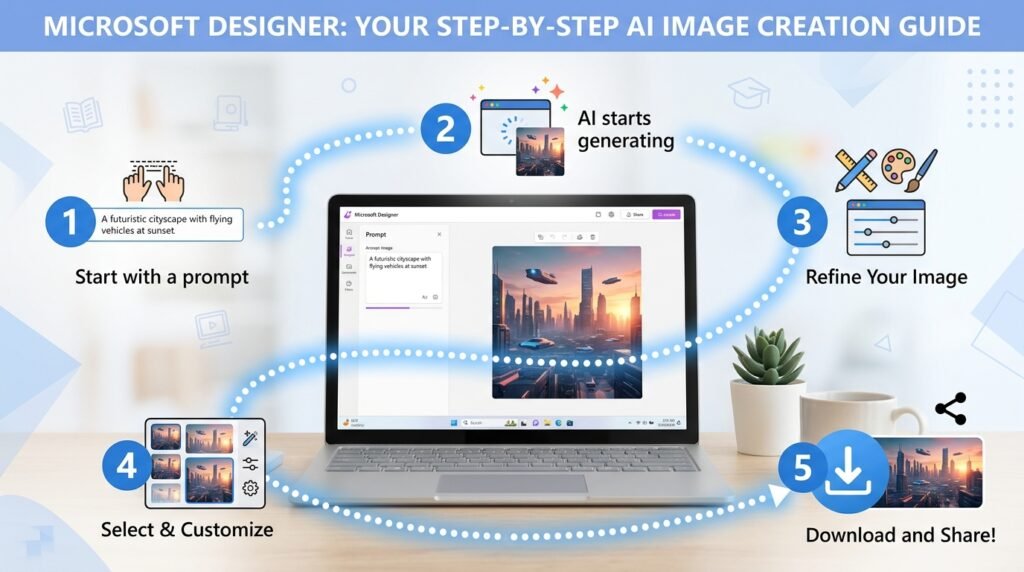
STEP 1 Go to the Website
Open your web browser and go to designer.microsoft.com
If you are on your phone, download the free Microsoft Designer app from the App Store or Google Play.
STEP 2 Sign In
Click “Sign In” and log in with your free Microsoft account. If you do not have one, click “Create one” it takes about two minutes and is completely free.
STEP 3 Find the Image Creator
On the homepage, look for the “Image Creator” option or the AI image generation section. Click on it to open the image generation tool.
STEP 4 Write Your Prompt
In the text box, type your image description. For your first try, use this beginner-friendly prompt:
“A cozy autumn coffee shop interior with warm golden lighting, wooden tables, steaming coffee cups, rain falling outside the window, soft and peaceful mood, photorealistic style, highly detailed”
STEP 5 Click Generate
Click the “Generate” button and wait 5 to 15 seconds. The AI will produce four different variations of your image based on your description.
STEP 6 Review and Select
Look at all four generated images. Click on the one you like best to open a larger preview. If none of them are quite right, you can click “Generate” again for four new variations.
STEP 7 Refine Your Prompt
If the results are not what you expected, adjust your prompt. Add more specific details about the style, lighting, or mood. The more descriptive you are, the better the results.
STEP 8 Download Your Image
When you are happy with your image, click the Download button. Your AI-generated artwork will save to your device as a high-quality image file ready to use in your project, post, or design.
STEP 9 Keep Experimenting
The most important step. Try different subjects, styles, and settings. The more you experiment with prompts, the faster you will learn what produces great results. Most people start getting genuinely impressive outputs within their first 30 minutes of practice.
Section 6 Pros and Cons of Free AI Art Generation
Understanding both sides of AI art generation will help you use these tools realistically and responsibly.
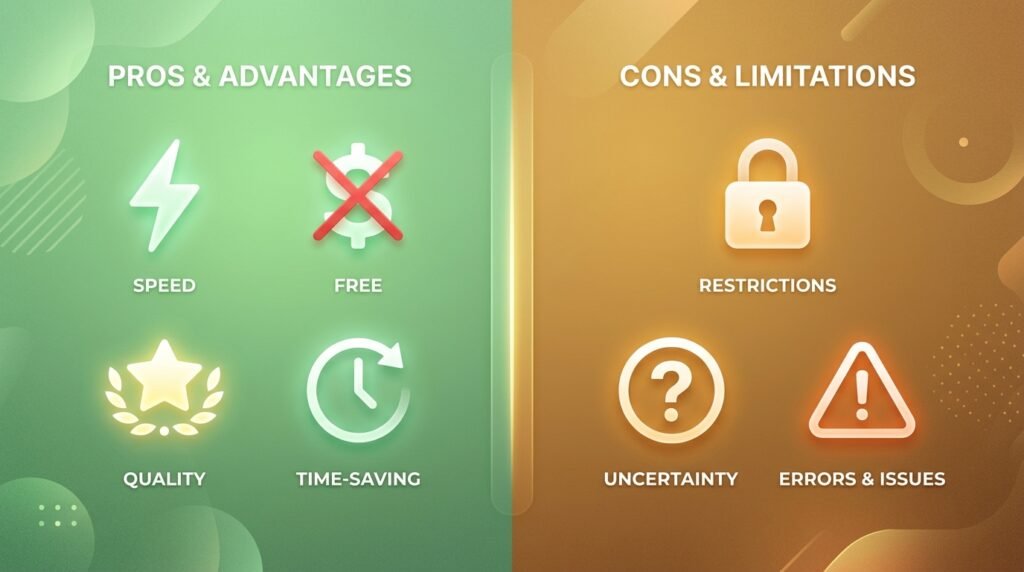
The Advantages
✅ Completely Free The tools covered in this guide are all free to use. You can create hundreds of professional-quality images without spending a single dollar something that was completely impossible just five years ago.
✅ No Artistic Skill Required You do not need to know how to draw, paint, or use Photoshop. If you can type a sentence in English, you can create AI art. The learning curve is measured in minutes, not months.
✅ Incredibly Fast A skilled human artist might spend hours or days creating a single detailed illustration. AI generates multiple high-quality image options in under 30 seconds. For content creators on tight deadlines, this speed is transformative.
✅ Limitless Creative Exploration You can experiment with styles, concepts, and creative directions that would be impossible to explore quickly with traditional art methods. Try a dozen different visual styles for the same concept in five minutes.
✅ Consistent Quality Unlike hiring freelancers where quality can vary dramatically, free AI tools consistently produce professional-grade output every single time.
The Limitations
❌ Prompting Takes Practice Getting the exact image you envision requires learning how to describe it effectively. Your first few attempts may be frustrating but most beginners improve significantly within their first hour of practice.
❌ AI Can Make Mistakes Hands, fingers, and fine text are still areas where AI image generators occasionally produce errors. A beautiful portrait might have subtly wrong fingers. Always inspect your images carefully before publishing them.
❌ Copyright and Ownership Questions The legal landscape around AI art copyright is still evolving in the USA. For commercial use, Adobe Firefly is the safest choice because of its licensed training data. For personal and non-commercial use, most free tools are fine.
❌ Free Plans Have Limits Every free plan has some limitation whether daily credit caps, slower generation speeds, or watermarked outputs. Heavy users may eventually need a paid plan for unlimited access.
❌ Ethical Considerations Some professional artists have raised legitimate concerns about AI systems trained on their work. Being thoughtful about how you use and credit AI-generated images is important.
❌ No Guaranteed Uniqueness While each generated image is technically original, two different users typing very similar prompts might get visually similar results. For truly unique branded imagery, additional customization may be needed.
Conclusion
Creating AI art for free in 2026 has never been easier, more accessible, or more impressive in quality. What once required expensive software, years of training, and professional artistic talent can now be accomplished by anyone in seconds, for free, from any device.
The six tools covered in this guide each shine in different areas. Microsoft Designer and Bing Image Creator are perfect starting points for absolute beginners free, simple, and powered by world-class technology. Leonardo AI gives serious creative users the most generous free plan with the deepest artistic control. Adobe Firefly is the safest choice for commercial use. Google ImageFX wins for photorealism. Ideogram is unbeatable for designs that include text. And Canva AI is perfect for social media creators who want everything in one place.
The most important thing to remember is this: the only way to get good at AI art is to start. Open Microsoft Designer or Bing Image Creator right now. Write your first prompt. Generate your first image. It will take you less than five minutes and you might be genuinely surprised by what you create.
The tools are free. The creativity is yours. The only thing left to do is begin.
Frequently Asked Questions
Is AI art generation really free?
Yes completely. Every tool in this guide offers a free plan that requires no credit card. Microsoft Designer, Bing Image Creator, Google ImageFX, Leonardo AI, Ideogram, and Canva AI can all be used to generate high-quality AI art without spending any money.
Do I need any artistic skill or technical knowledge?
None whatsoever. If you can type a sentence in English and click a button, you can generate AI art. The tools in this guide are specifically designed to be used by complete beginners with zero technical background.
Which free AI art tool is best for absolute beginners?
Microsoft Designer and Bing Image Creator are the easiest starting points. Both require only a free Microsoft account, have zero learning curve, and produce excellent results immediately. Google ImageFX is another great beginner option.
Can I use free AI-generated art for my business or website?
Adobe Firefly’s free plan explicitly allows commercial use and is the safest option for business purposes. Other tools have more restrictive commercial use terms on their free plans. Always read each platform’s terms of service before using AI images commercially.
Why does the AI sometimes create something different from what I described?
This happens when prompts are too vague or use words the AI interprets differently than you intended. The solution is to be more specific and descriptive in your prompt. Adding style keywords, lighting descriptions, and mood descriptors significantly improves accuracy.
Can AI art generators create images with readable text in them?
Most struggle with this but Ideogram AI is specifically designed to handle text inside images and does it far better than any other free tool. If you need a poster or graphic with specific words in it, use Ideogram.
Are there copyright issues with AI-generated images?
The legal landscape is still evolving. For personal use, most free tools are fine. For commercial use, Adobe Firefly is the safest choice because it was trained on properly licensed content. Always check the specific terms of service of whichever tool you use.
How many images can I generate for free each day?
It varies by tool. Leonardo AI gives approximately 30–50 images per day. Microsoft Designer and Google ImageFX have generous daily limits. Ideogram offers 10 per day. Adobe Firefly gives 25 per month. Bing Image Creator offers daily boost credits plus slower unlimited generation.
What is the best prompt I can write as a complete beginner?
Start with this formula: describe your subject in detail, add an art style (photorealistic, oil painting, digital illustration), describe the lighting (warm golden light, soft natural daylight), and add a mood word (peaceful, dramatic, cozy). Example: “A red barn in a snowy field at dawn, soft pink morning light, peaceful and quiet mood, photorealistic photography style, highly detailed.”
Can I sell AI-generated artwork?
Some platforms allow it on paid plans Adobe Firefly is the most permissive for commercial use. Selling AI art on platforms like Etsy or as prints is a growing business for many creators in the USA, but always verify the commercial rights of your specific tool before selling.